
On keeping
How to save mission photos before account access changes
Part of: How to preserve family stories, voices, and everyday memories
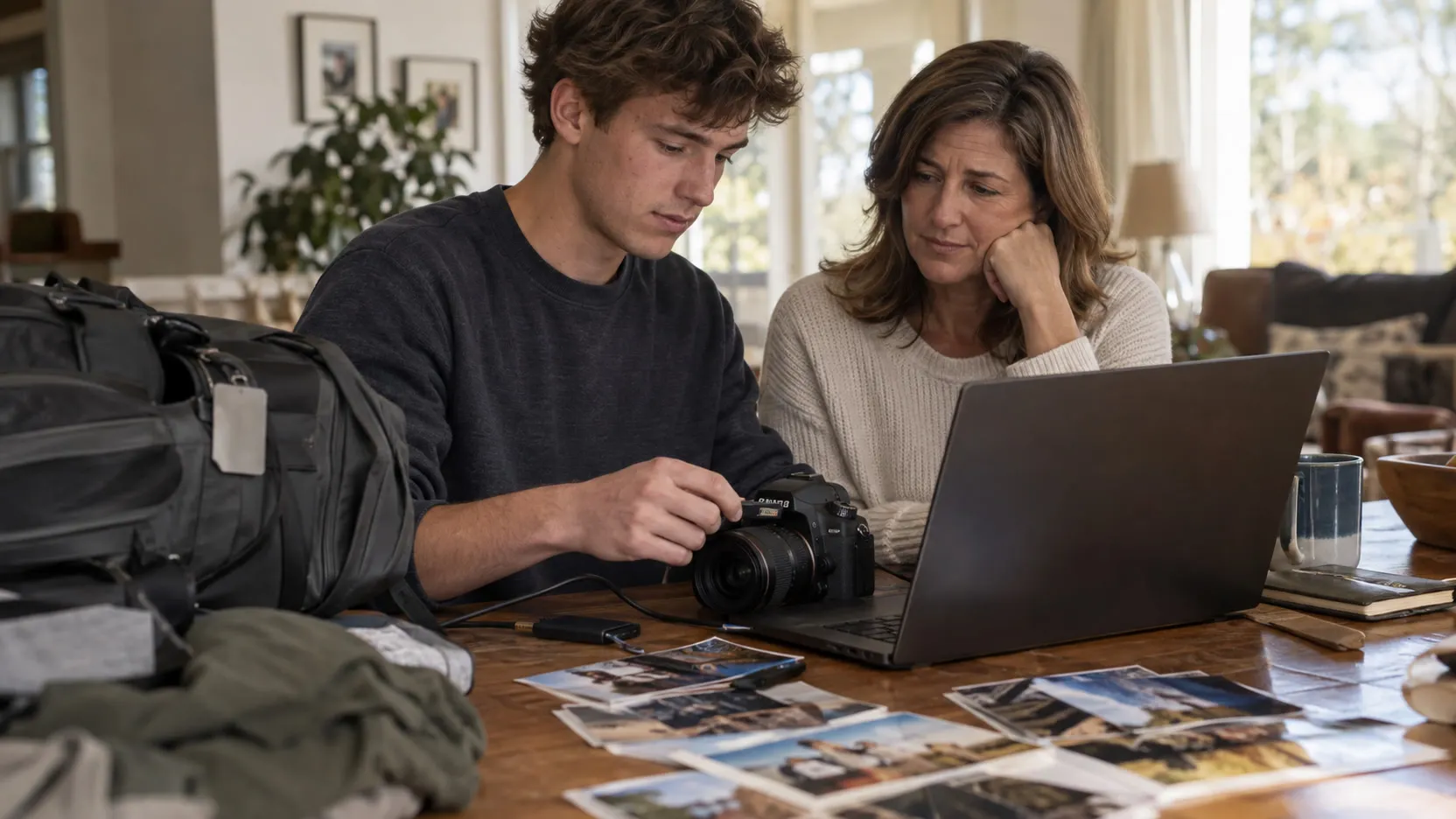
Coming home has enough inside it already: a flight, a family to hug, an ordinary life to step back into. Making a separate copy of your mission photos is easy to leave for another week.
If those photos live in an account managed by someone else, start while you can still sign in. Ask the mission office or account administrator when your access will change and what you’re allowed to copy. There isn’t a single closure deadline established by the Google instructions below, and they don’t establish a Church-wide mission-account policy.
I want the picture to survive with its story: who was there, what happened just before it, why you still think about that afternoon. First, though, let’s get a copy you can open without the temporary account.
1. Find the photos and confirm permission
Check where your own photos actually live: Google Photos, Google Drive, email attachments, or a device. These are separate places; downloading one doesn’t necessarily copy the others.
For a managed account, confirm the permitted export method with the administrator. Google explains that Workspace administrators can control whether users download data from different products. If Takeout is missing or blocked, ask for an approved way to receive your personal records. Don’t change device restrictions or copy records you’re not authorized to take.
Before copying or sharing photographs of other people, consider their permission and privacy. Personal mission memories and confidential information about people you served need different care.
2. Download individual photos from Google Photos
For a few important images, Google’s desktop instructions are straightforward:
- On a computer, open Google Photos and confirm you’re signed into the account that holds the picture.
- Select a photo or video.
- Choose More, then Download.
- Open the downloaded file from your computer, rather than from the Photos page. Check that a video plays as well as showing a thumbnail.
Save these files into a folder you can identify later. Downloading a picture doesn’t make a copy of every shared album or every message attached to your mission.
3. Request a larger export with Google Takeout
If the account permits it, Google Takeout can create an archive of selected Google data. Follow Google’s export guide:
- Sign into the account that holds the records, then open Takeout.
- Deselect products you don’t need and select Google Photos. Review any available album-selection options. Select other permitted products separately if you also need records from them.
- Choose Next step, a one-time export, and an archive format and size suitable for your computer. ZIP is a common option.
- Choose a delivery method. A download link lets you save the archive to your computer when it’s ready. Select Create export.
- When Google notifies you, download every archive part and extract the files. Keep the archive as well as a working copy of the extracted folder.
An export request isn’t a finished backup. Google says archive preparation can take time, and changes made between the request and archive creation may not be included. Allow time to download and check it before access changes. If the archive lands in the same temporary account’s Drive, move a permitted copy somewhere you control.
Keep the accompanying JSON files with your photos. Google explains that additional information, such as comments, can arrive in separate JSON files; the downloaded file’s timestamp can also differ from the original capture date. Don’t sort everything by download date and assume that’s when it happened.
4. Check the copy and keep another one
Open photos from different parts of your service and play several videos from the downloaded folder. Check for missing archive parts, albums, or periods you expected to see. Then make a second copy in a separate place you control, such as an external drive or private personal storage account.
Add a small text file with names, places, and dates you remember. Mark uncertain details as uncertain. You don’t have to caption the whole mission today; start with a photograph whose story only you can explain.
If you can no longer sign in, contact the administrator about permitted recovery options. This guide cannot promise that a closed account or deleted files can be restored.
Keep the story beside the files
The photos are one part of the record. Save the weekly mission emails too, and, when you’re ready, record a homecoming conversation about what the pictures can’t show.
UNA’s Mission preview describes a future direction. It is not an available mission import or archive, so use storage you control now. The Keep something planner can help you choose a next step without asking for the contents of your story.
A separate copy and a few sentences of your own are a good beginning. The rest can grow from there.